[!WARNING] AI-based tools can make mistakes: double check results and use them with caution.
The EC2U PhD Agreements Tool helps draft cotutelle PhD agreements by comparing agreement text against institutional policy documents and identifying potential compliance issues. It runs as a Confluence macro: agreements are authored and stored directly within a Confluence workspace.
The system is not intended to fully automate processes requiring professional expertise. Think of it as a junior assistant: delegate to speed up work, but keep control over decisions.
All documents are safely stored within the Confluence platform. Data is shared only with certified external cloud systems for the duration strictly necessary to complete processing and is never disclosed to third parties.
[!IMPORTANT] To further enhance privacy, share personally identifiable information only when strictly necessary: draft with placeholders and add personal details only when finalising locally.
Agreements
Open Agreement Catalogue
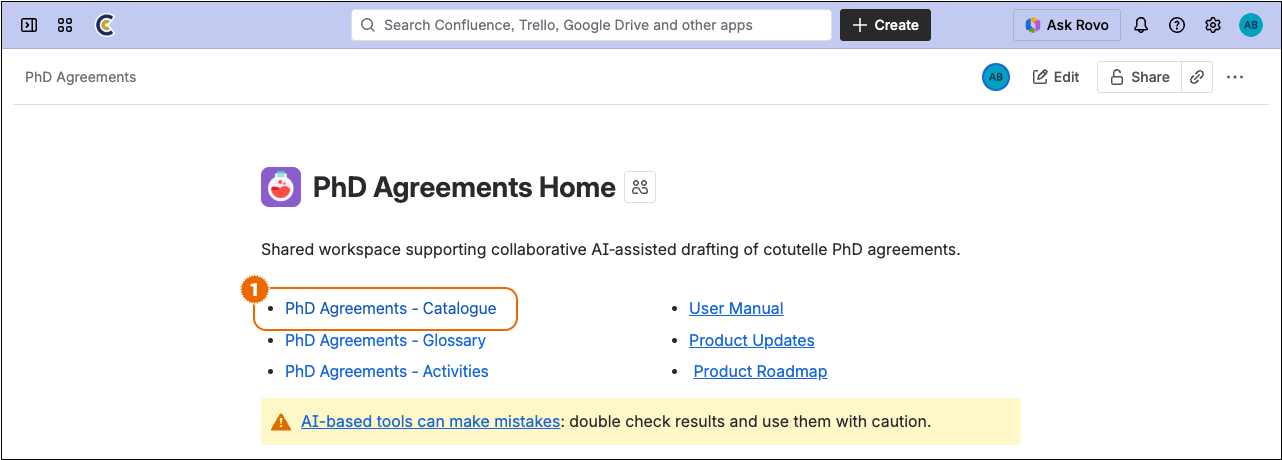
- Navigate to the catalogue from the workspace main page
Create New Agreement
-
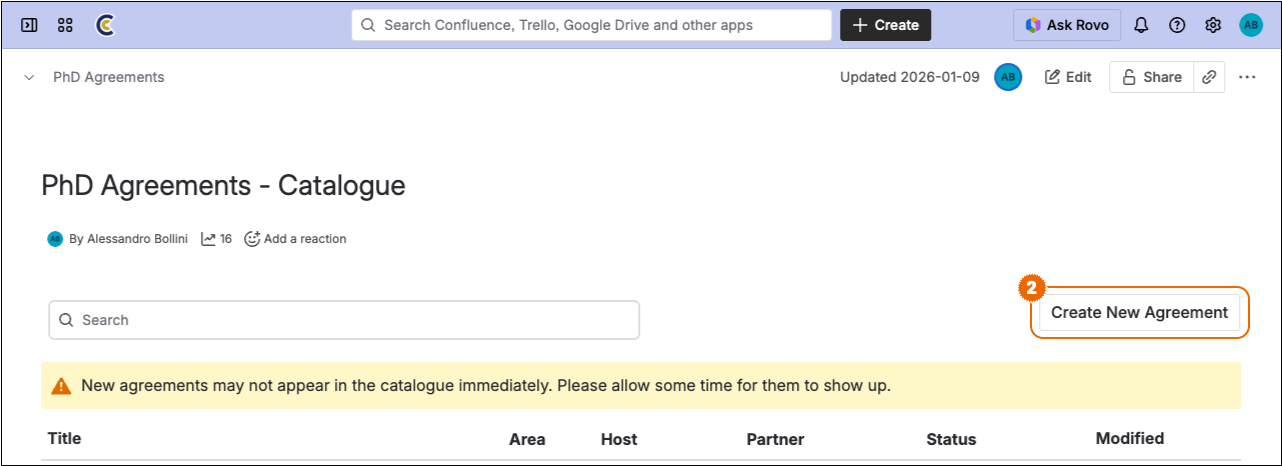
Click on the
Create New Agreementbutton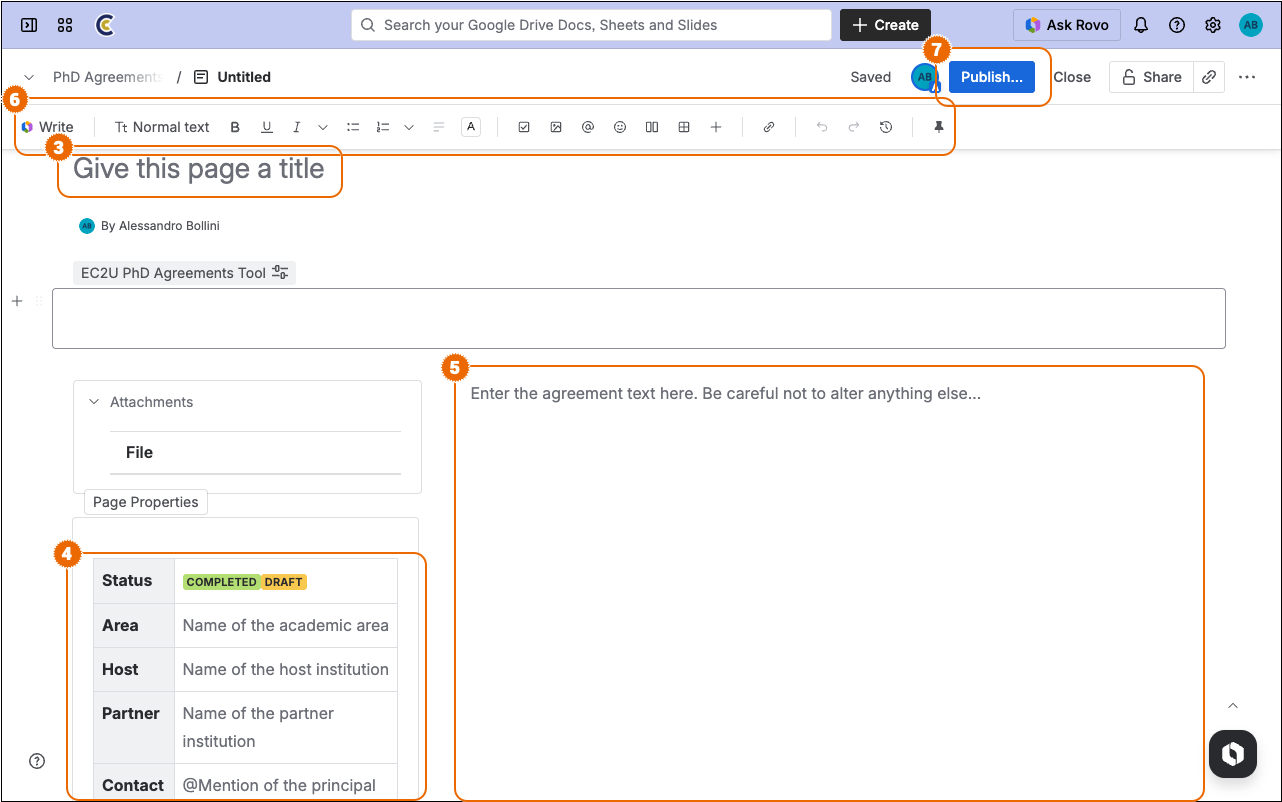
Enter agreement title
Enter agreement metadata
- Status - Delete immaterial tags or use the
/statuscommand to enter new colour-coded values - Area - Enter name of the reference faculty/department
- Host/Partner - Enter the name of host/partner institutions
- Contact - Use
@Mentionto link the profile of the principal editor for the agreement
- Status - Delete immaterial tags or use the
Replace the placeholder with the initial agreement text
[!IMPORTANT] Be careful not to remove the
EC2U PhD Agreements Toolmacro or to alter the overall document structure in other ways. Removing or overwriting the macro or altering the document structure would prevent the agent from working.All Confluence editing tools may be used to structure and format the agreement text
When done, click on the
Updatebutton to publish the new agreement
Open Agreement
-
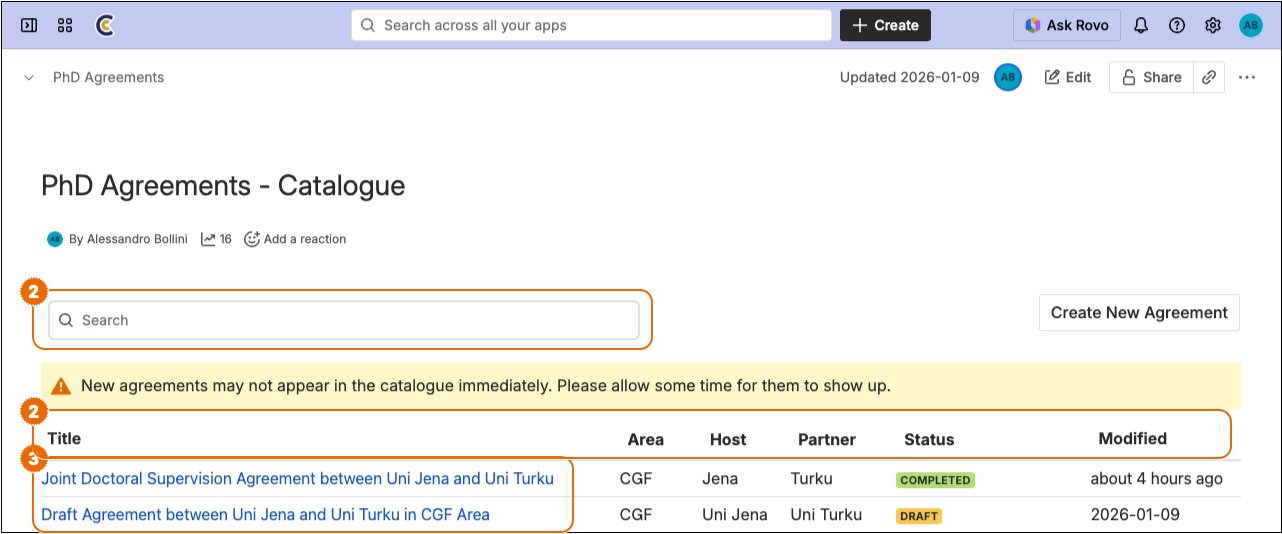
Identify the relevant agreement
- Use the search field to filter on the agreement name
- Click on the catalogue field names in the table header to alter sorting
Click on the relevant agreement name to open it
Update Agreement
-
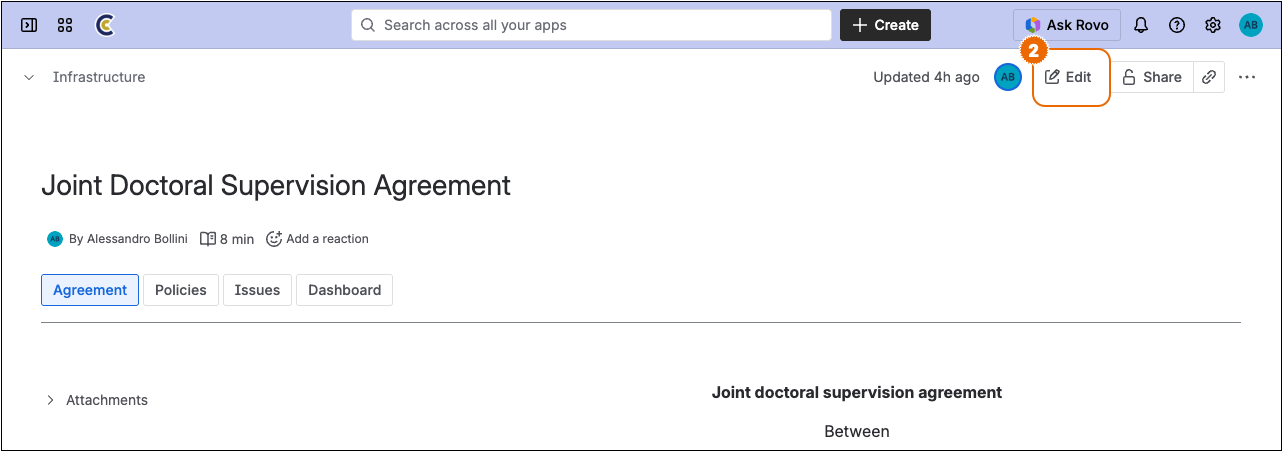
Click on the
Editbutton to enter editing mode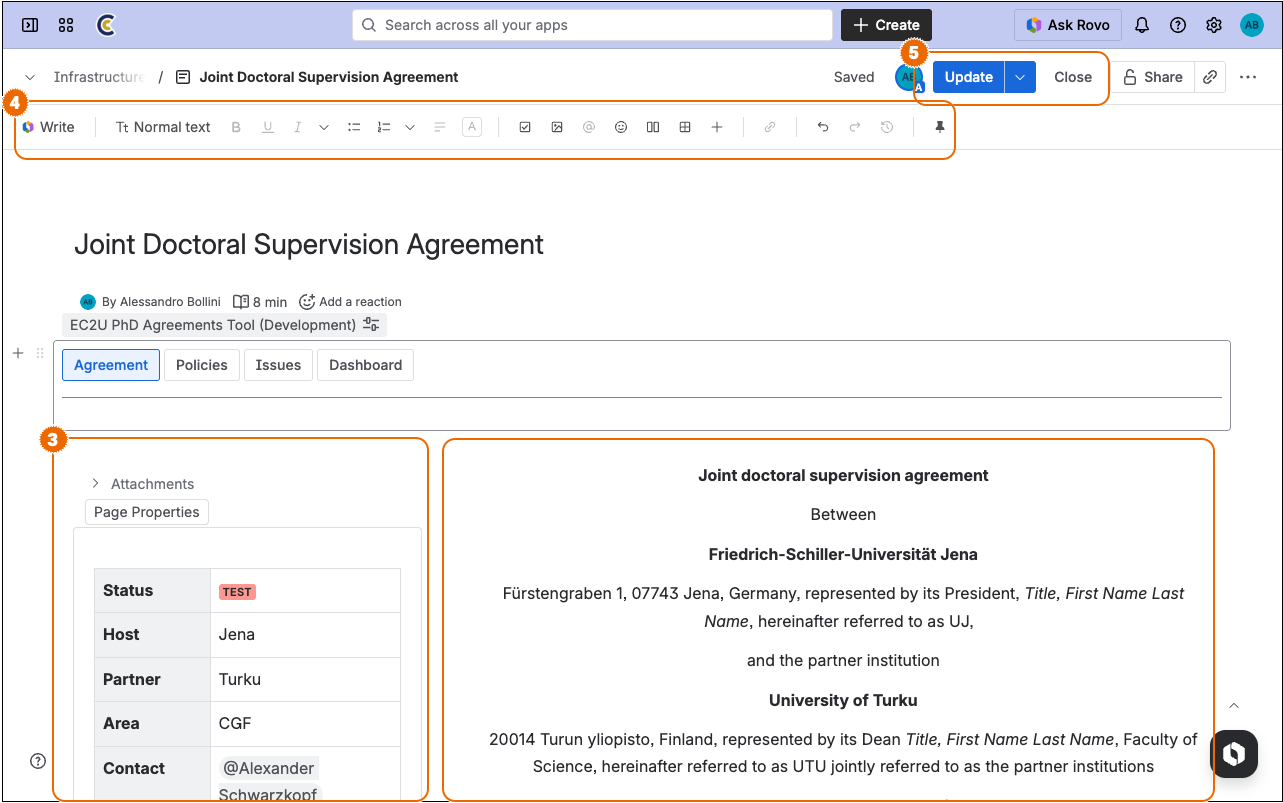
Edit agreement metadata or the agreement text
All Confluence collaborative features are available in editing mode
When done, click on the
Updatebutton to save and publish changes- The
Closebutton will save changes as a draft version without publishing them
- The
Delete Agreement
-
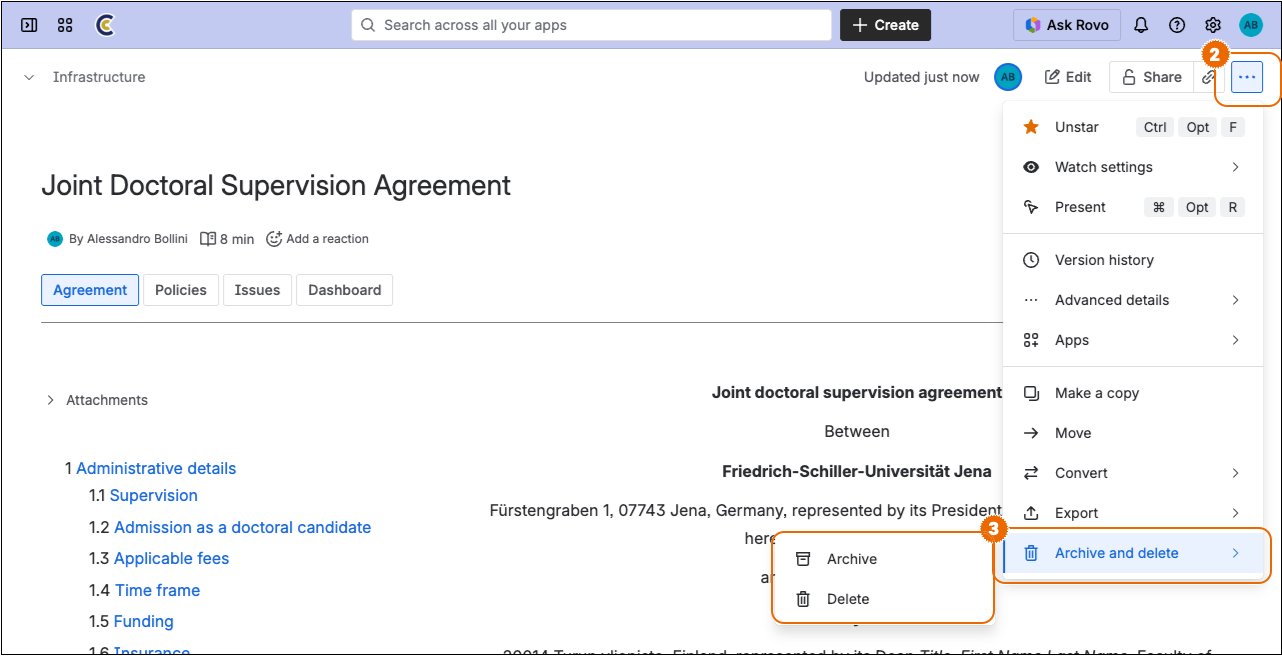
Click on the
More actionsbutton in the top-right cornerClick on the
Archive and Deletebutton in the dropdown menu and select an actionArchivewould move the document to an archival area without permanently deleting itDeletewould immediately move the document to the trash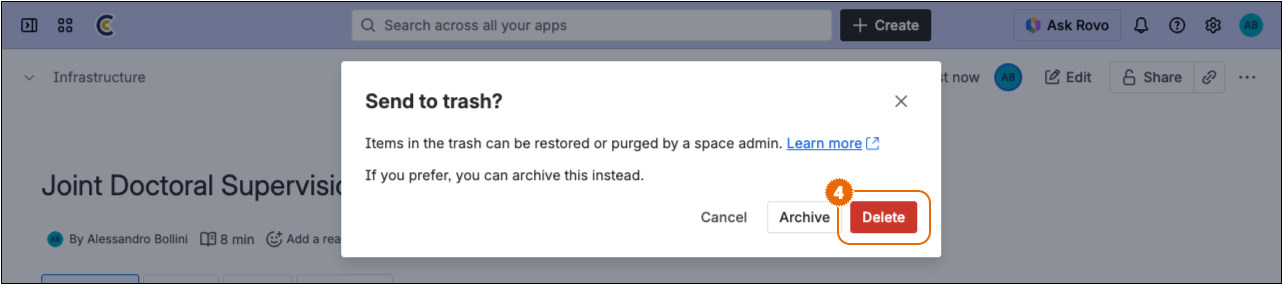
Click either on the
DeleteorArchivebutton to confirm the operation
Policies
Policies are institutional or regulatory documents that define requirements, guidelines, and standards governing PhD agreements. These PDF documents are attached to agreements and serve as reference materials during the analysis process, helping identify potential issues and ensuring compliance with institutional norms. Policies can originate from both institutions involved in the agreement and may apply at different levels: national, institutional, or area-specific (for instance, department or faculty).
Attach Policies to Agreement
-
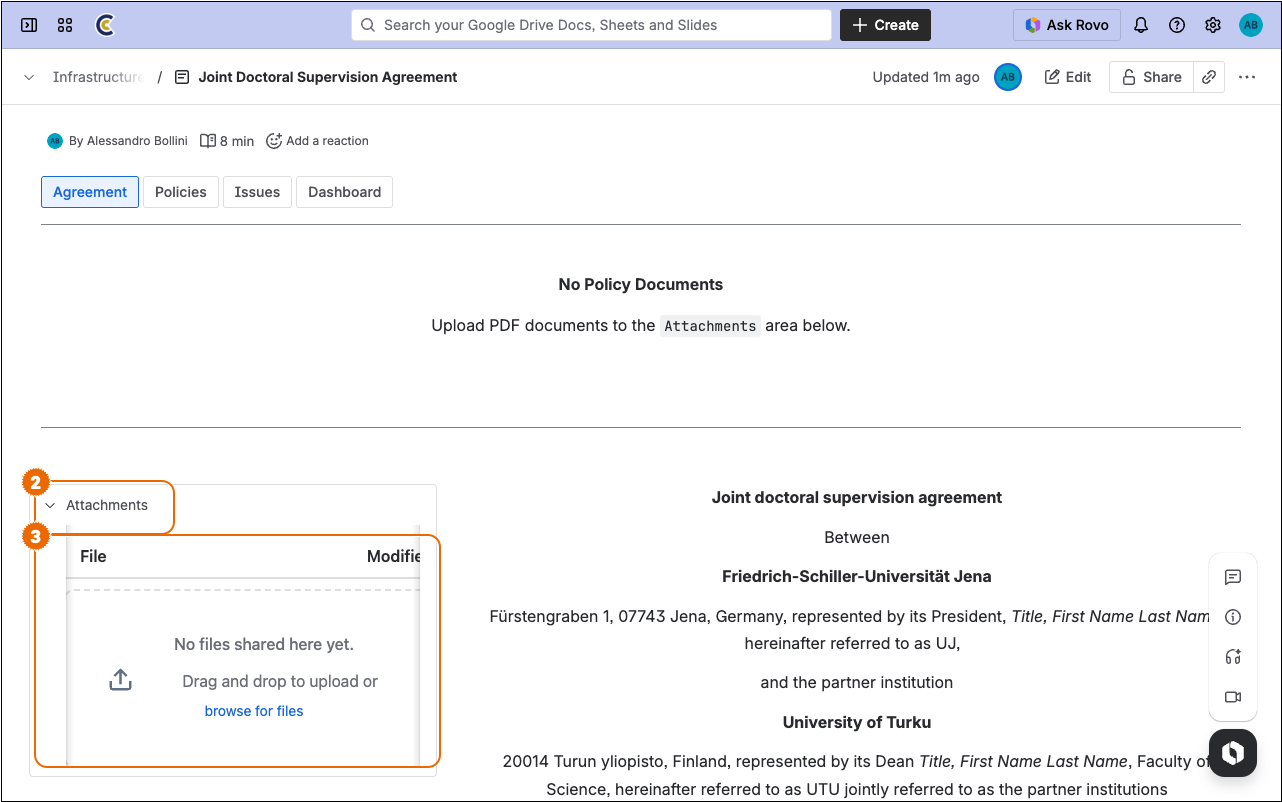
Click on the
Attachmentdisclosure label to open the attachment catalogueUpload PDF policy documents by clicking on the
browse for filesbutton or by dragging them to the attachment drop area
[!NOTE] Only PDF policy documents will be considered in the agreement analysis process.
For best results rename the policy documents in order to provide a clear human-readable label: the policy file name will be used to reference its content in AI-identified issues.
The system will automatically translate to English policies written in a local language.
Detach Policy from Agreement
-
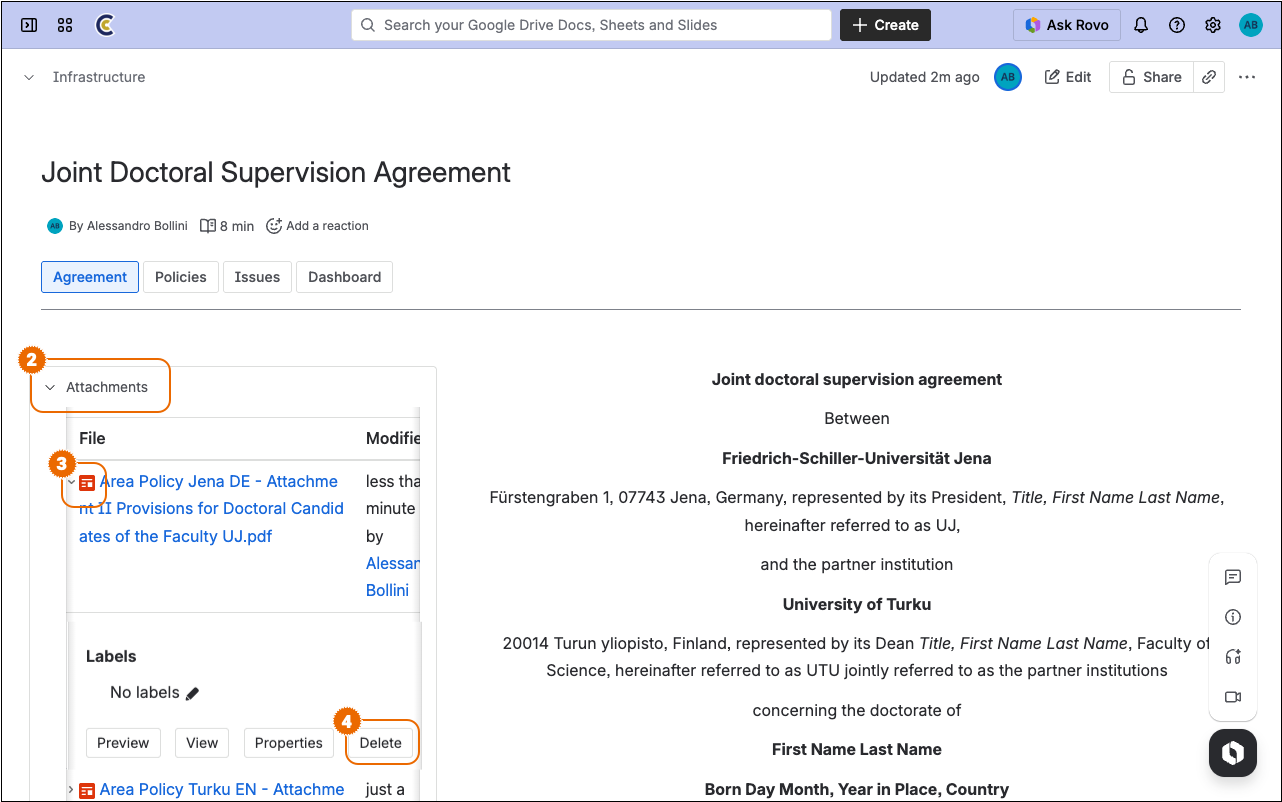
Click on the
Attachmentdisclosure label to open the attachment catalogueClick on the target attachment disclosure label to open the attachment detail panel
Click on the
Deletebutton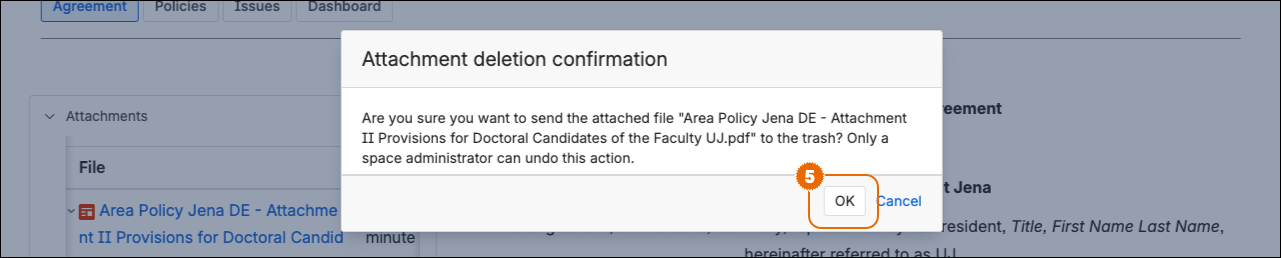
Click on the
OKbutton to confirm the operation
Browse Policies
-
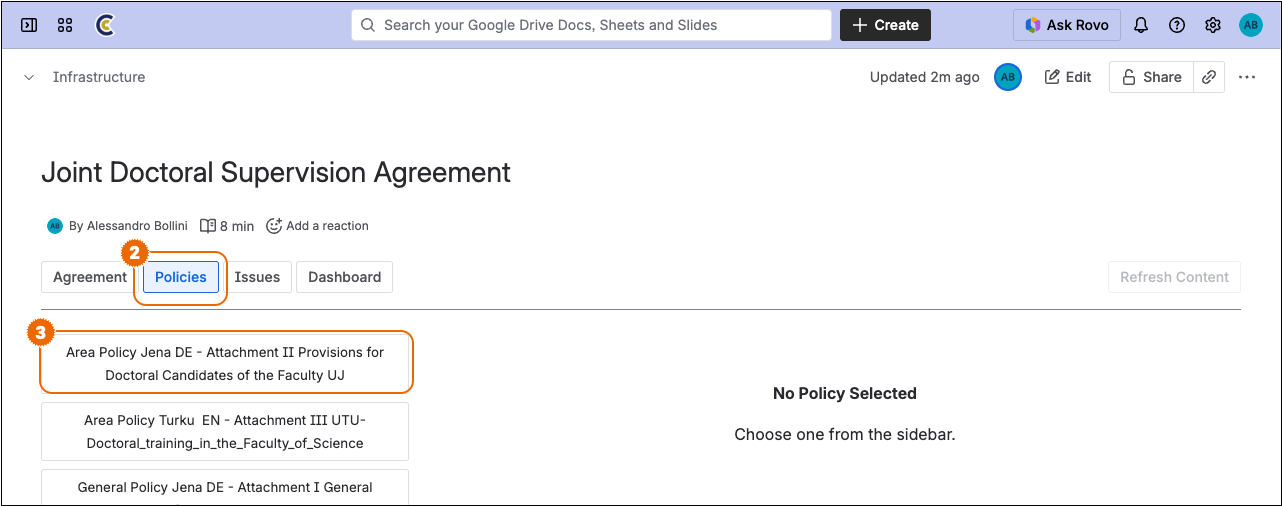
Click on the
Policiestab to show the policy browser; the main area displays the translated content of the selected policy. The sidebar shows a table of contents below the policy list, allowing quick navigation within the documentClick on a policy title in the sidebar to inspect its English translation
[!WARNING] On first access, the system will spend some minutes extracting the plain text from the original PDF document and translating it to English: stand by until the process completes; results will be cached for quicker subsequent access.
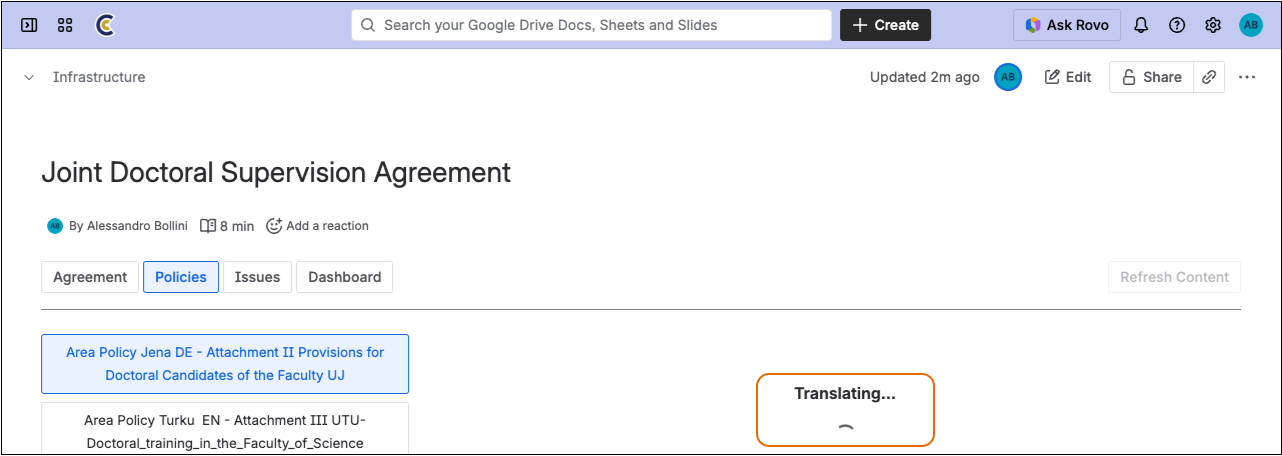
Refresh Policy Content
Browse policies and select the target policy
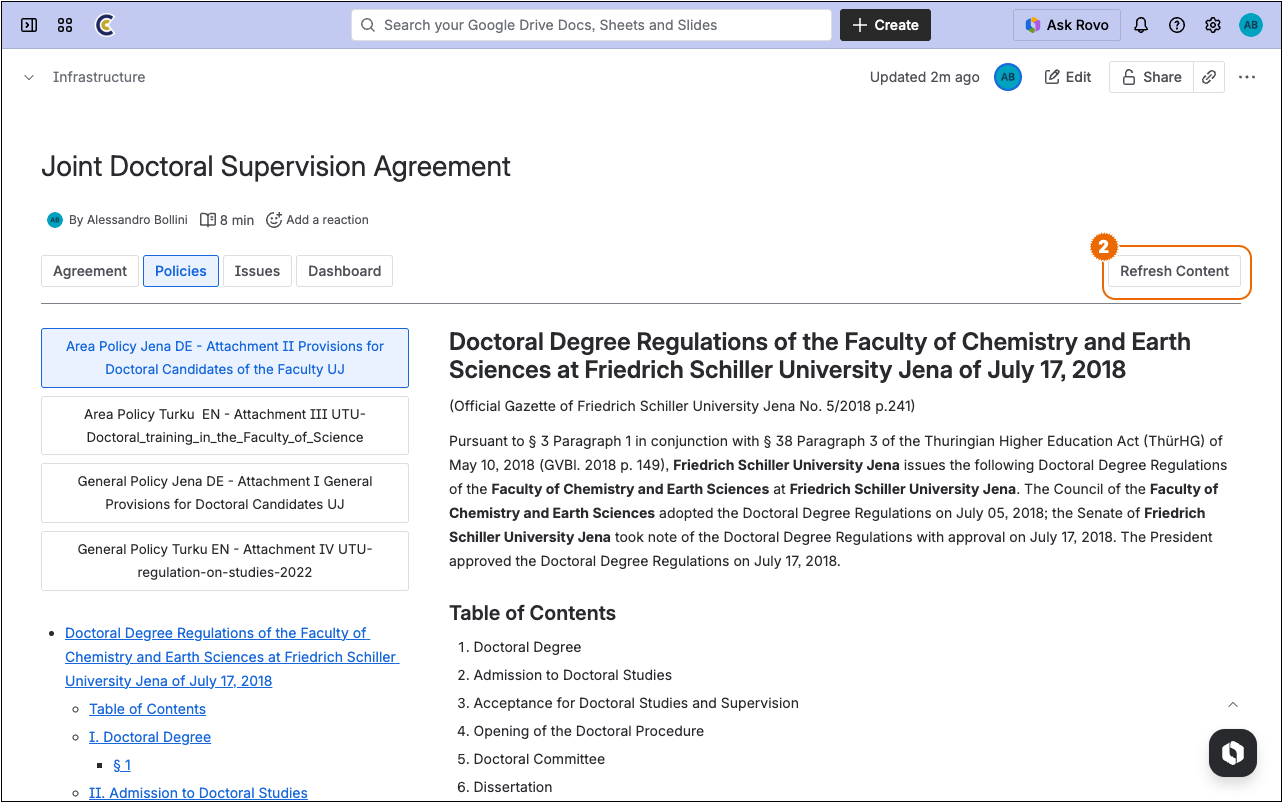
Click on the
Refresh Contentbutton in the toolbar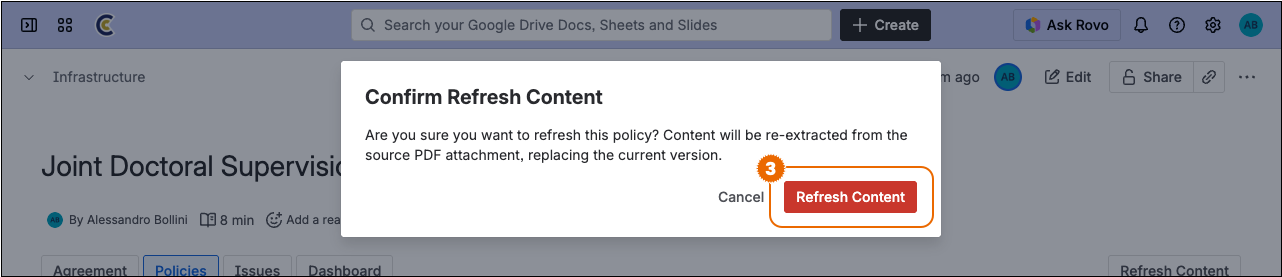
Click on the
Refresh Contentbutton to confirm the operation; the policy content will be re-extracted from the source PDF attachment, replacing the current cached version.
Download Policy
-
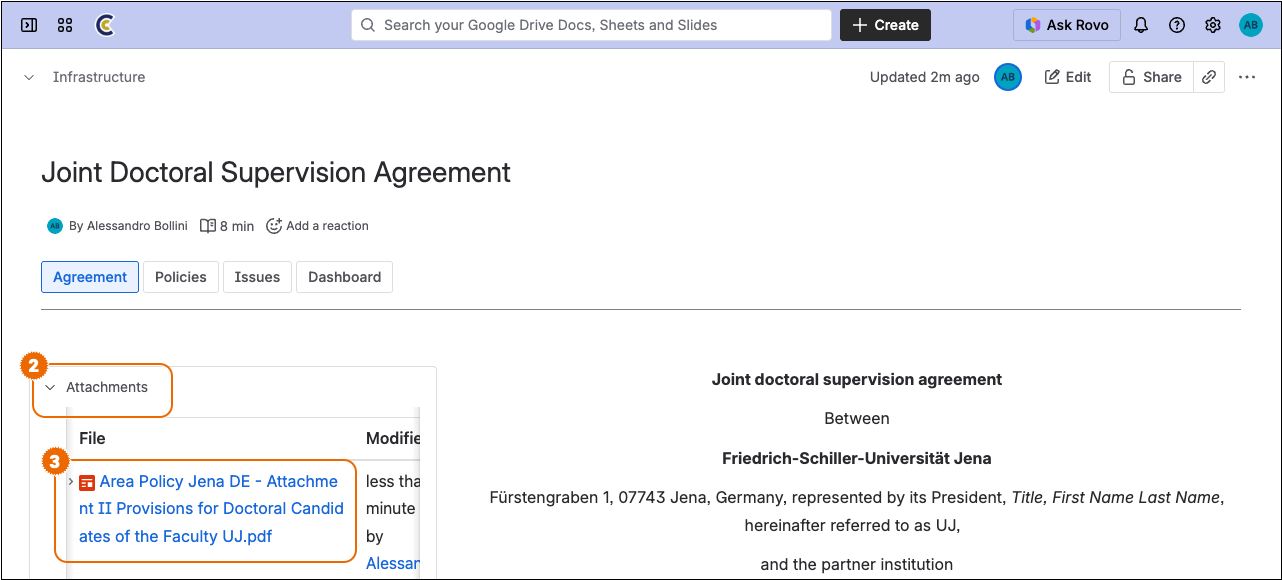
Click on the
Attachmentdisclosure label to open the attachment catalogueClick on the policy filename to download the original PDF document
Issues
Issues are specific problems, inconsistencies, or points of concern identified when the agreement text is evaluated against attached policy documents. They help users track, classify, and resolve all matters that may affect the completeness or compliance of the PhD agreement.
Issues are structured with the following properties:
| Property | Value | Description |
|---|---|---|
| Title | Describes the specific problem or concern | |
| Severity | ★★★ | High — Critical issues requiring immediate attention |
| ★★☆ | Medium — Important but not urgent issues | |
| ★☆☆ | Low — Minor issues with little impact | |
| State | Pending |
The issue is still awaiting initial triage |
Active |
The issue is currently being actively worked on | |
Blocked |
The solution to the issue is blocked by external factors | |
Resolved |
The issue has been successfully resolved | |
| References | Excerpts from the agreement text and citations from relevant policy documents (expandable/collapsible) | |
| Annotations | User-added notes supporting Markdown format for tracking decisions and context |
Analyse Agreement
-
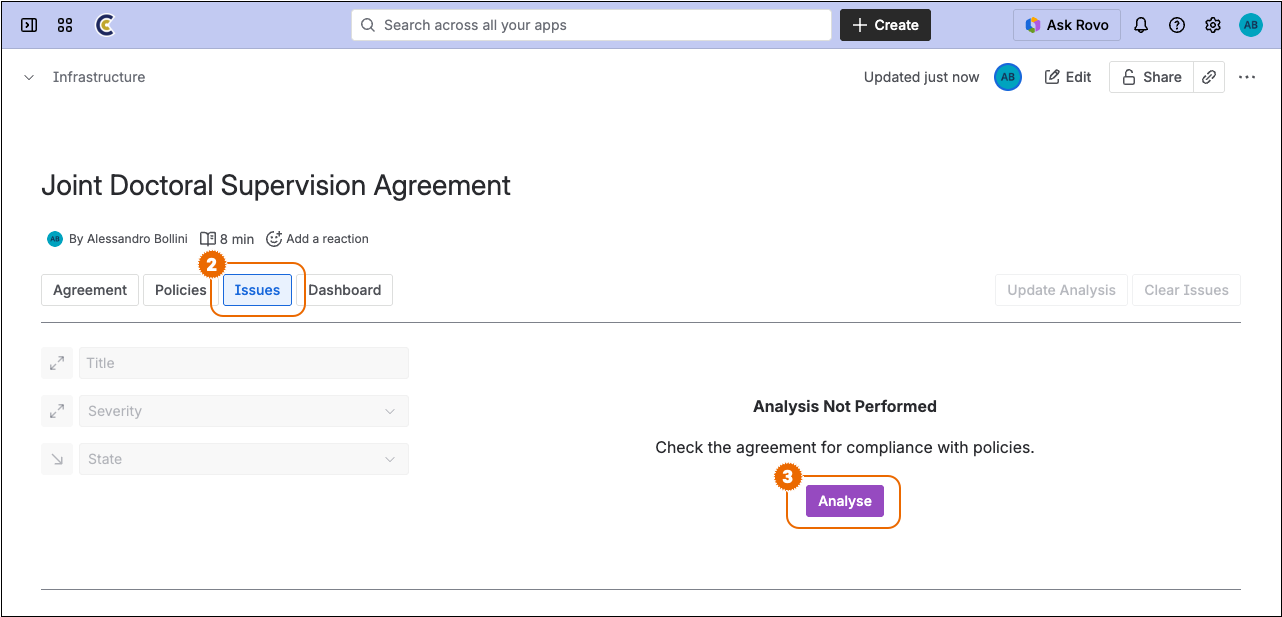
Click on the
Issuestab to show the issue catalogueClick on the
Analysebutton to start the compliance analysis
[!WARNING] The system will spend some minutes evaluating the agreement text against each attached policy document: stand by until the process completes; results will be cached for quicker subsequent access.
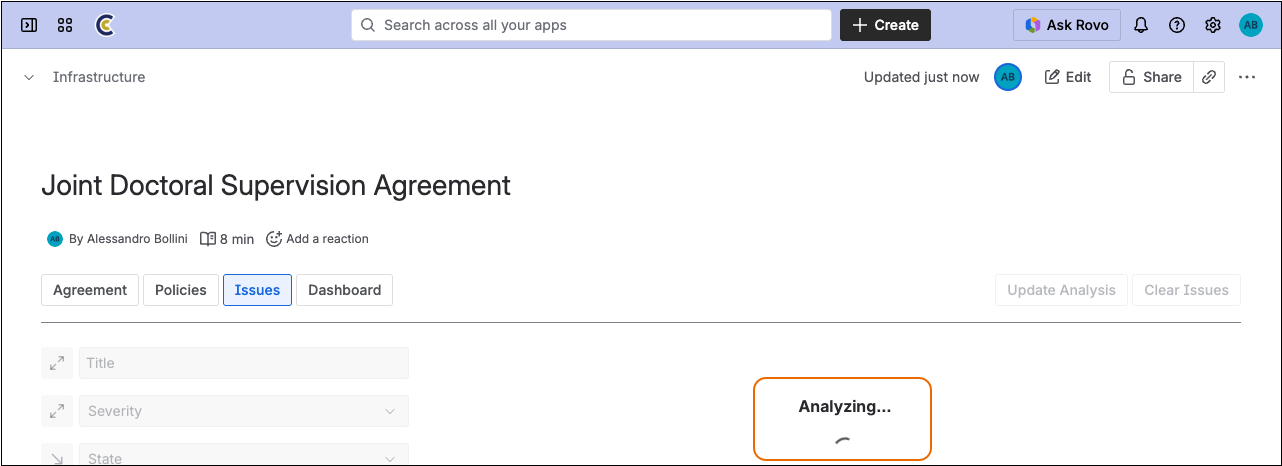
Inspect Issues
-
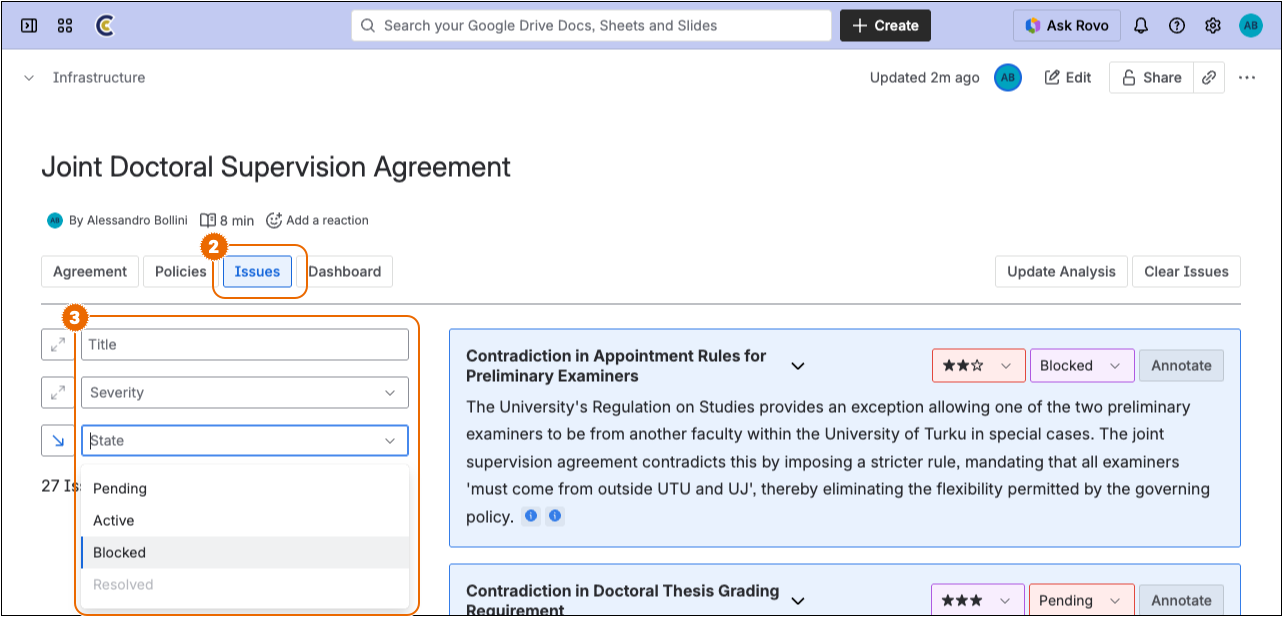
Click on the
Issuestab to show the issue catalogueUse the sidebar controls to search and filter issues:
- Title - Type in the text field to search issues by title keywords
- Severity - Select one or more severity levels to filter the catalogue
State - Select one or more states to filter the catalogue
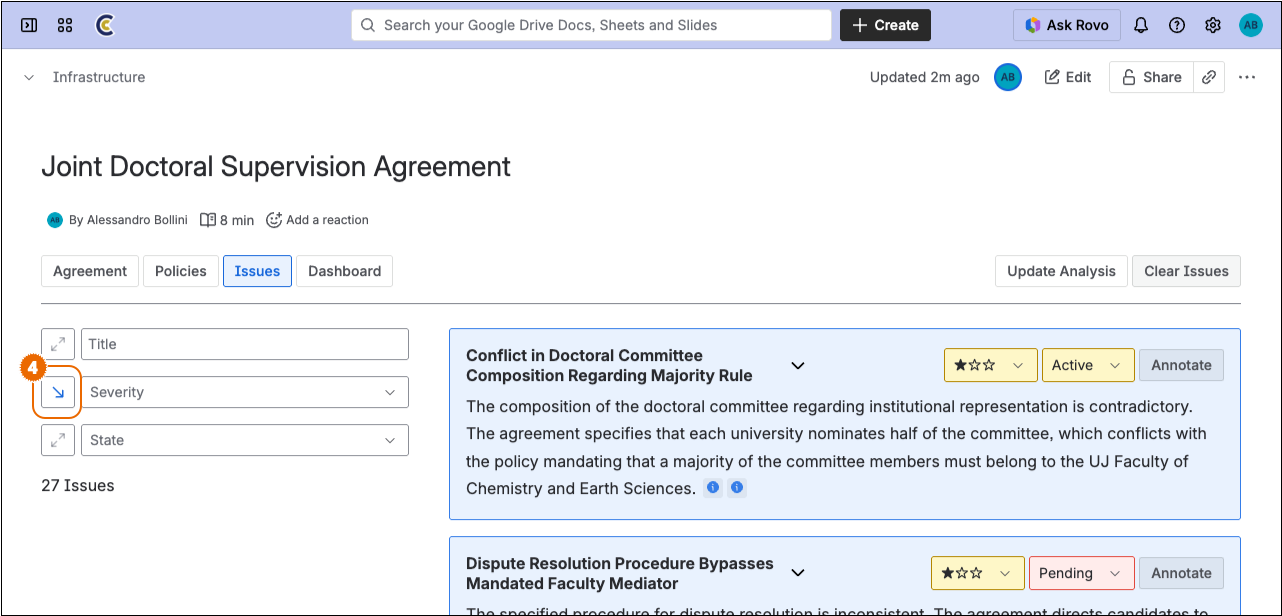
Click on the sort toggle next to each field label to cycle through ascending and descending sort order
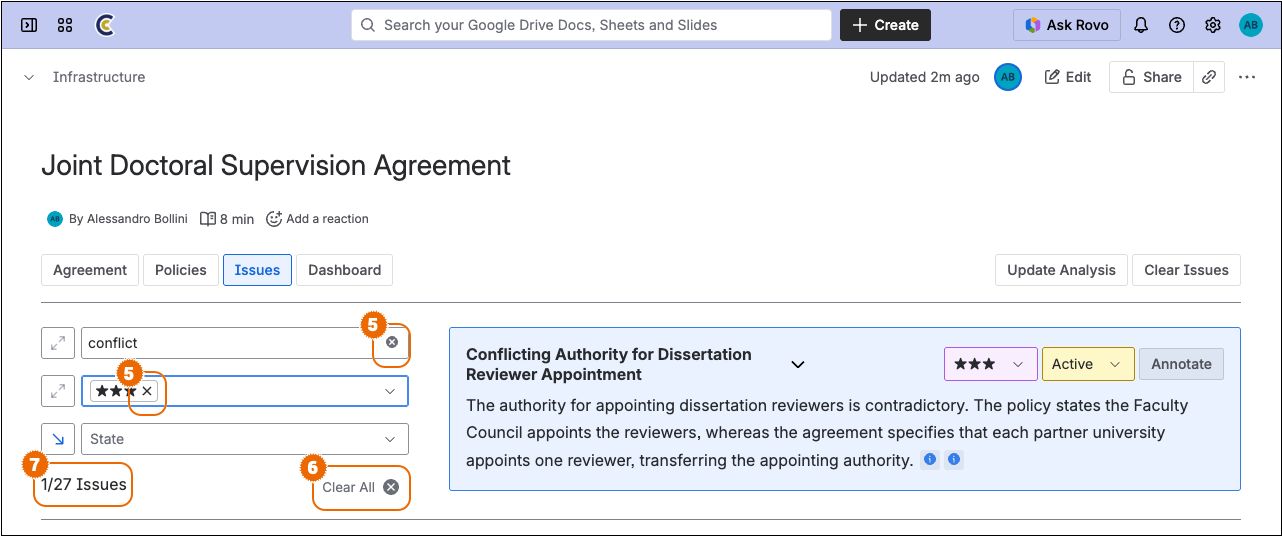
Click on the
xbutton next to individual filter chips to clear them separatelyClick on the
Clear Allbutton at the bottom of the sidebar to remove all filtersThe issue count at the bottom of the sidebar shows the number of matching issues out of the total.
Inspect References
Inspect issues and scroll to the relevant issue
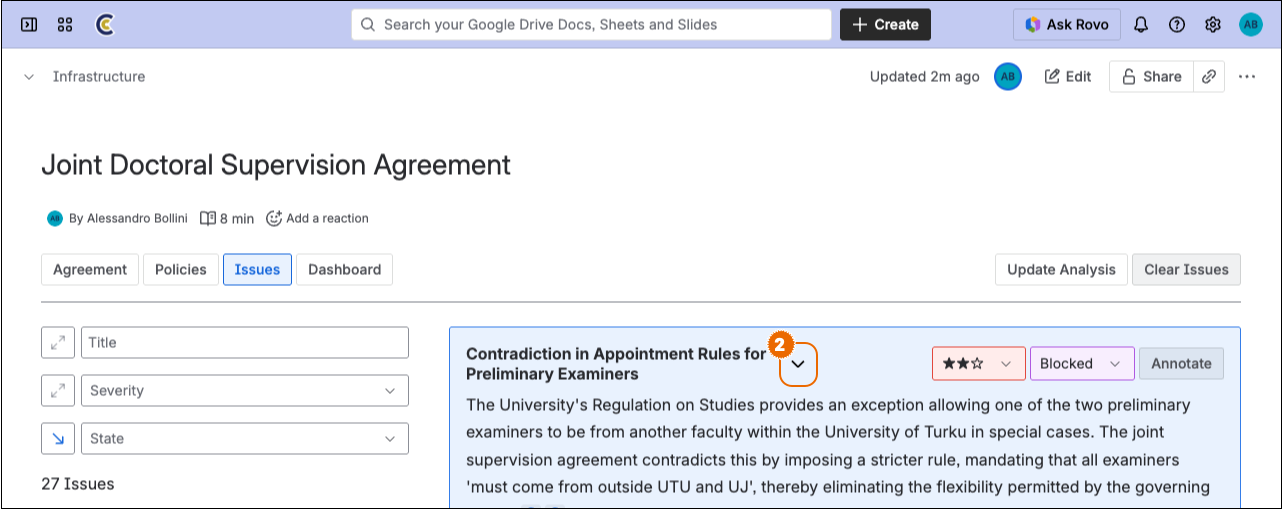
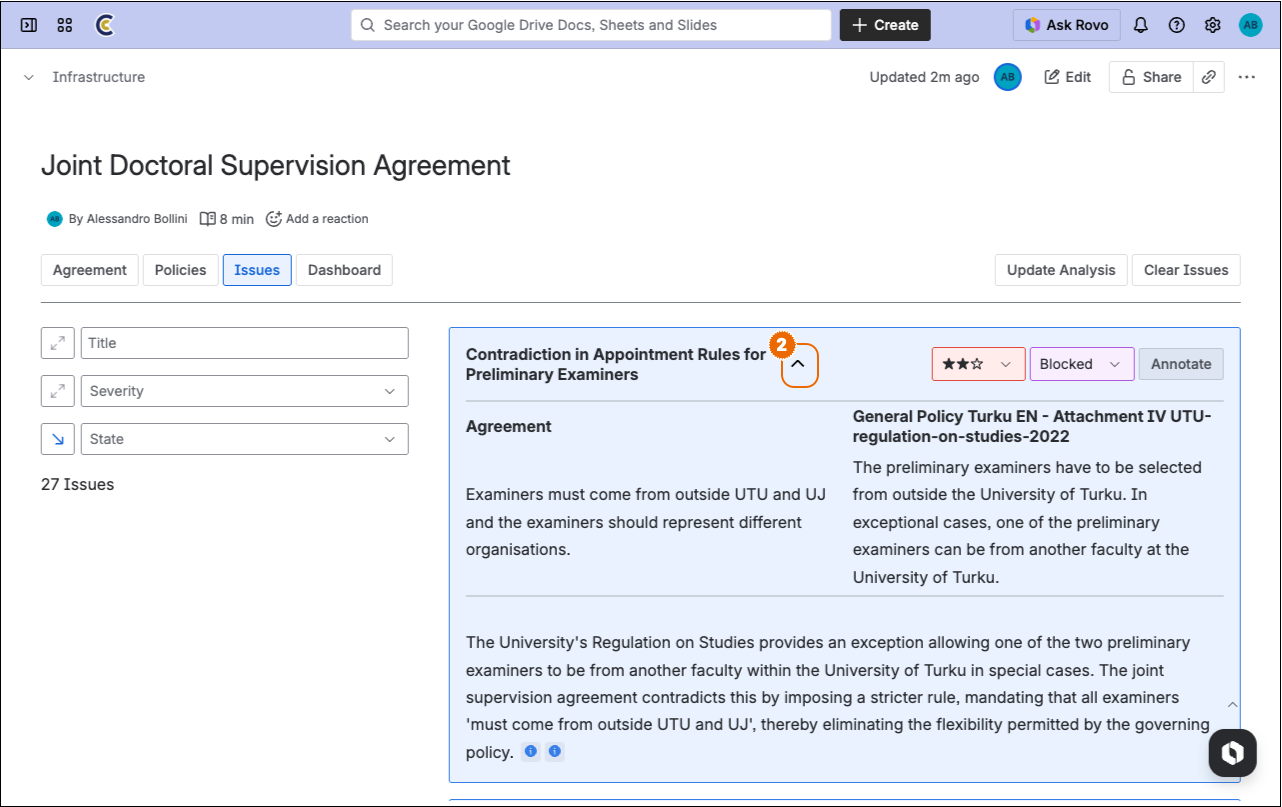
Click on the chevron toggle next to the issue title to expand or collapse the reference excerpts
References are displayed in a two-column table comparing agreement text excerpts with relevant policy citations. Inline reference markers in the issue description can also be clicked to view individual source details in a popup.
Classify Issue
Inspect issues and scroll to the relevant issue
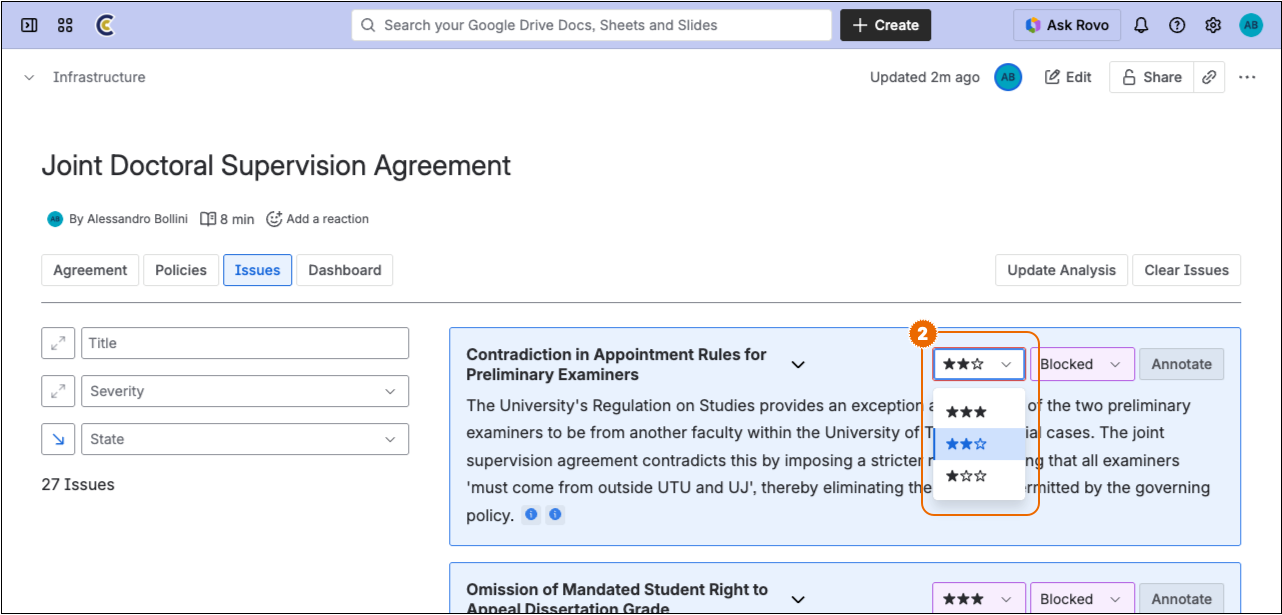
Click on the severity selector in the issue header and choose the relevant severity classification to override the value automatically assigned by the system on creation
Transition Issue
Inspect issues and scroll to the relevant issue
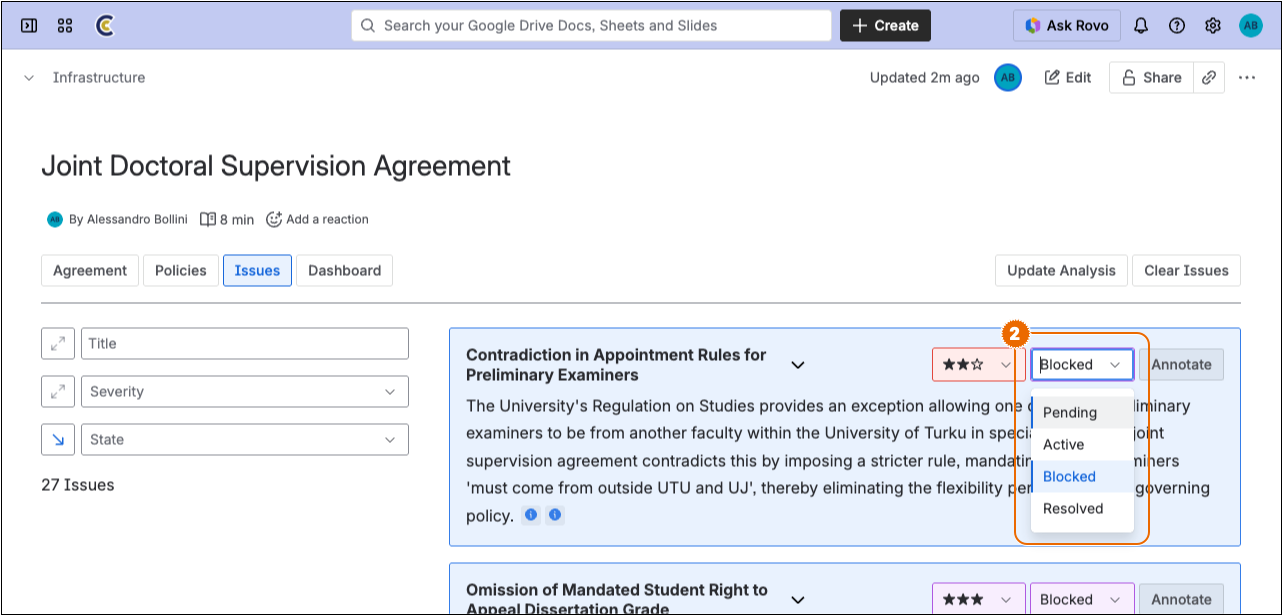
Click on the state selector in the issue header and choose the relevant state classification to override the value automatically assigned by the system on creation
Annotate Issue
Inspect issues and scroll to the relevant issue
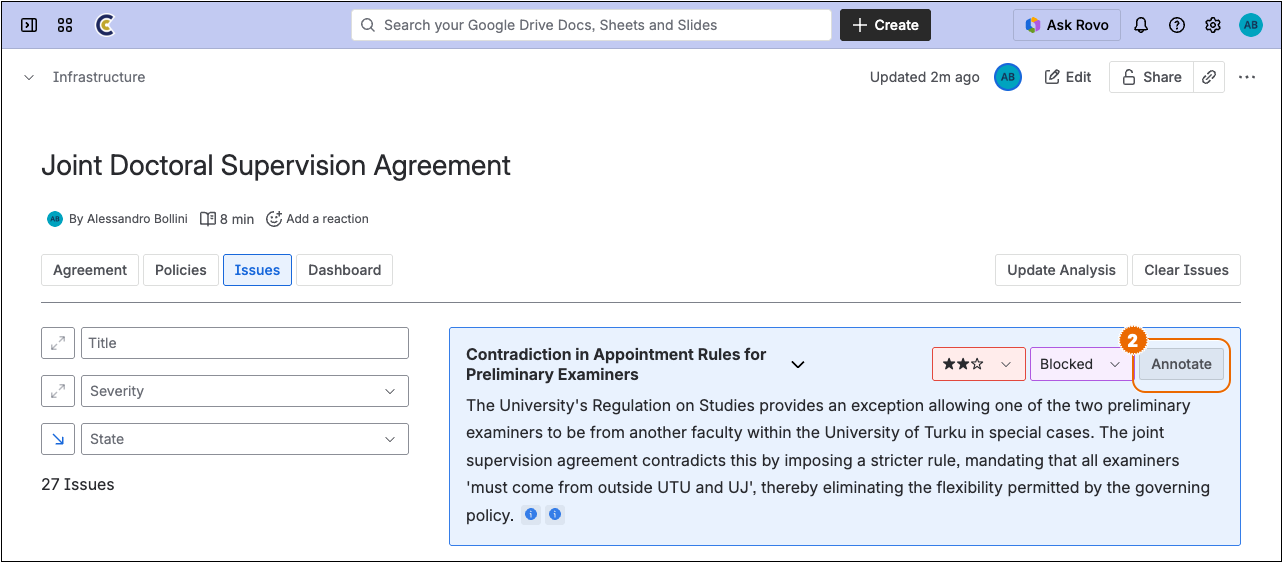
Click on the
Annotatebutton in the issue header to enter annotation mode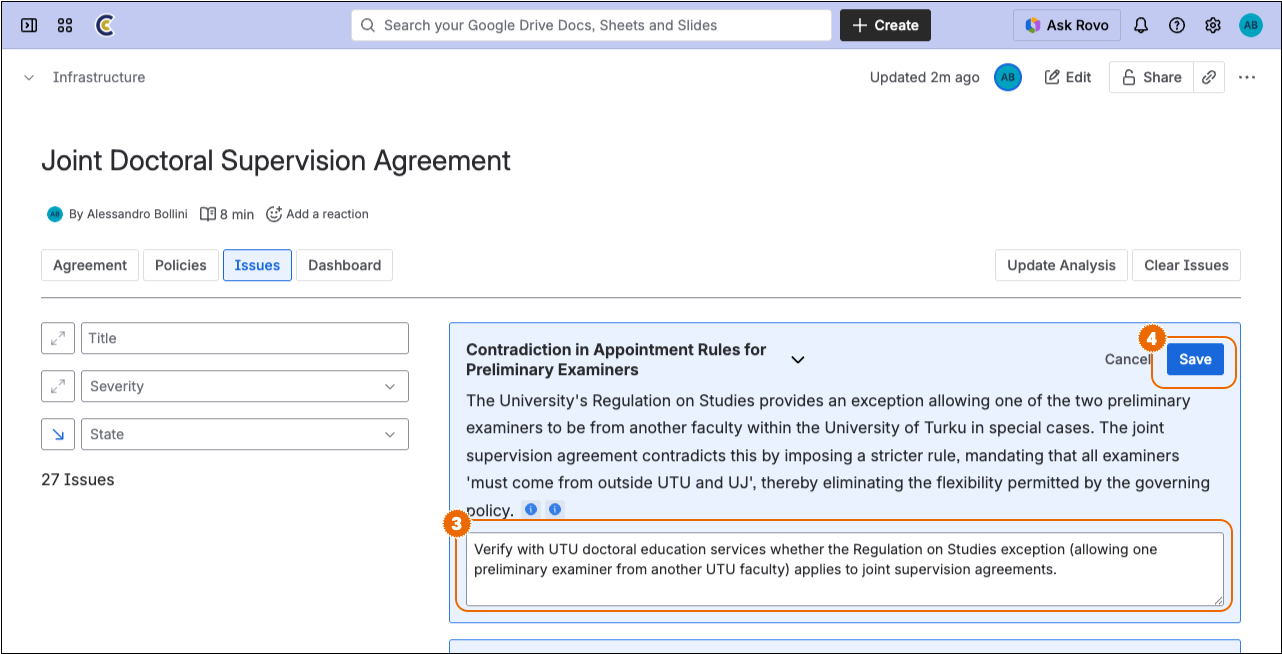
Enter or edit issue annotations
[!TIP] Structured annotations may be entered using the basic Markdown format.
Click on the
Savebutton to save updated annotations- Click on the
Cancelbutton to discard changes
- Click on the
[!IMPORTANT] The system will take into account annotations when updating agreement analysis.
Update Analysis
Agreement analysis may be refreshed at any time, especially after the agreement text is modified; the system will take into account existing issues and focus only on changes.
This action is intended to refresh issues after incremental updates to the agreement text or attached policy documents: existing issues and user annotations are taken into account in the process, in order to avoid duplications or regressions. After major updates extensively altering either the structure or the content of the agreement text or the attached policies you may want to clear the issues and analyse the text from scratch.
-
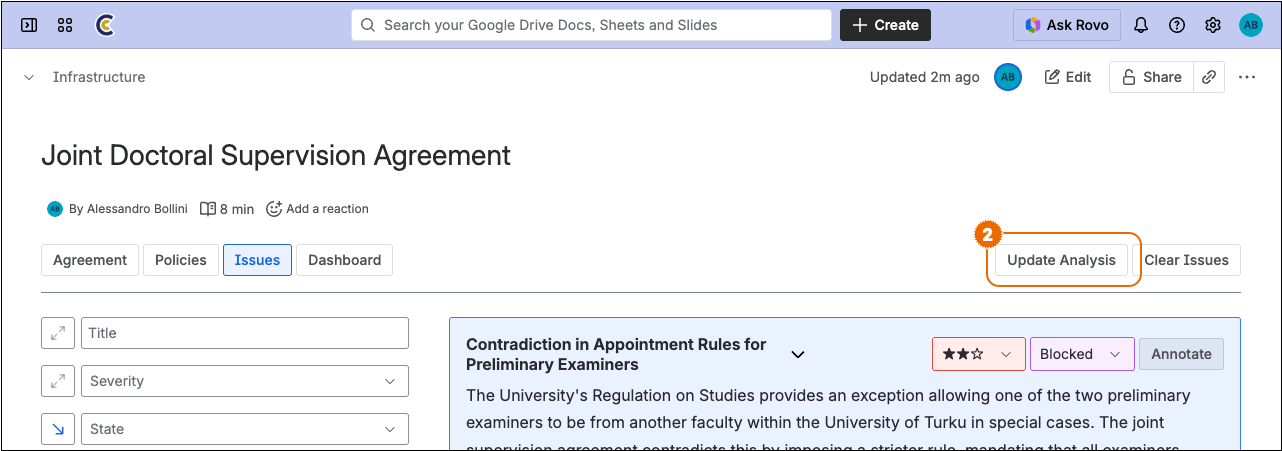
Click on the
Update Analysisbutton in the toolbar
Clear Issues
Clearing the issues drops the compliance analysis history of the page: the system will recompute results from scratch on the next analysis.
-
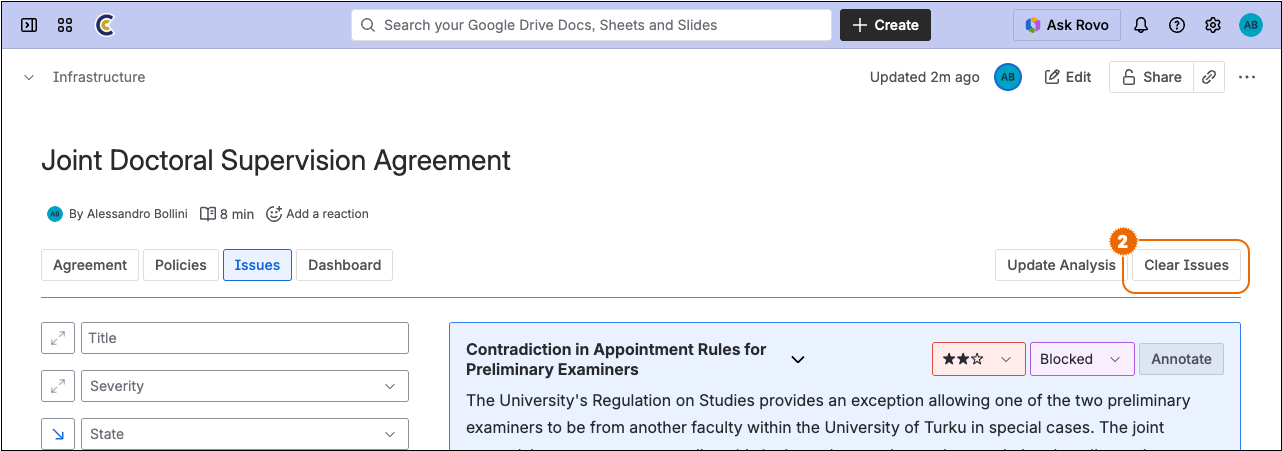
Click on the
Clear Issuesbutton in the toolbar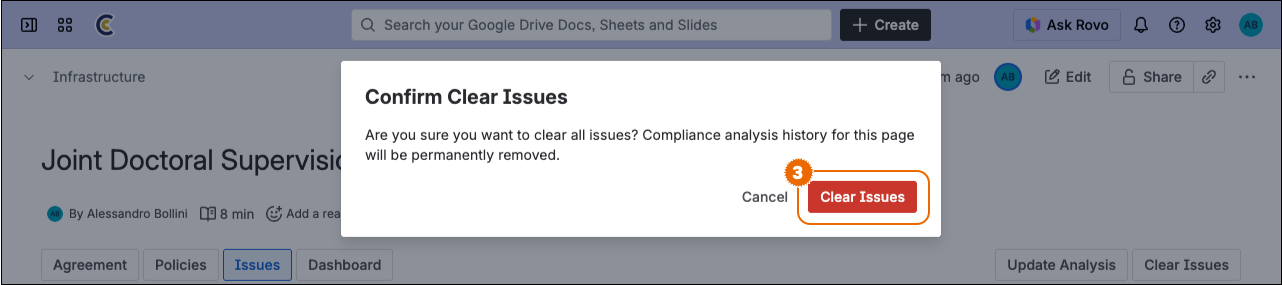
Click on the
Clear Issuesbutton to confirm the operation
Dashboard
The dashboard view provides a dynamic issue matrix, suitable for status overview and process management:
- Columns represent issue state values: Pending, Active, Blocked, Resolved
- Rows represent issue severity values: ★★★ (High), ★★☆ (Medium), ★☆☆ (Low)
- Cells contain issues with the corresponding severity/state values
Inspect Issue Matrix
-
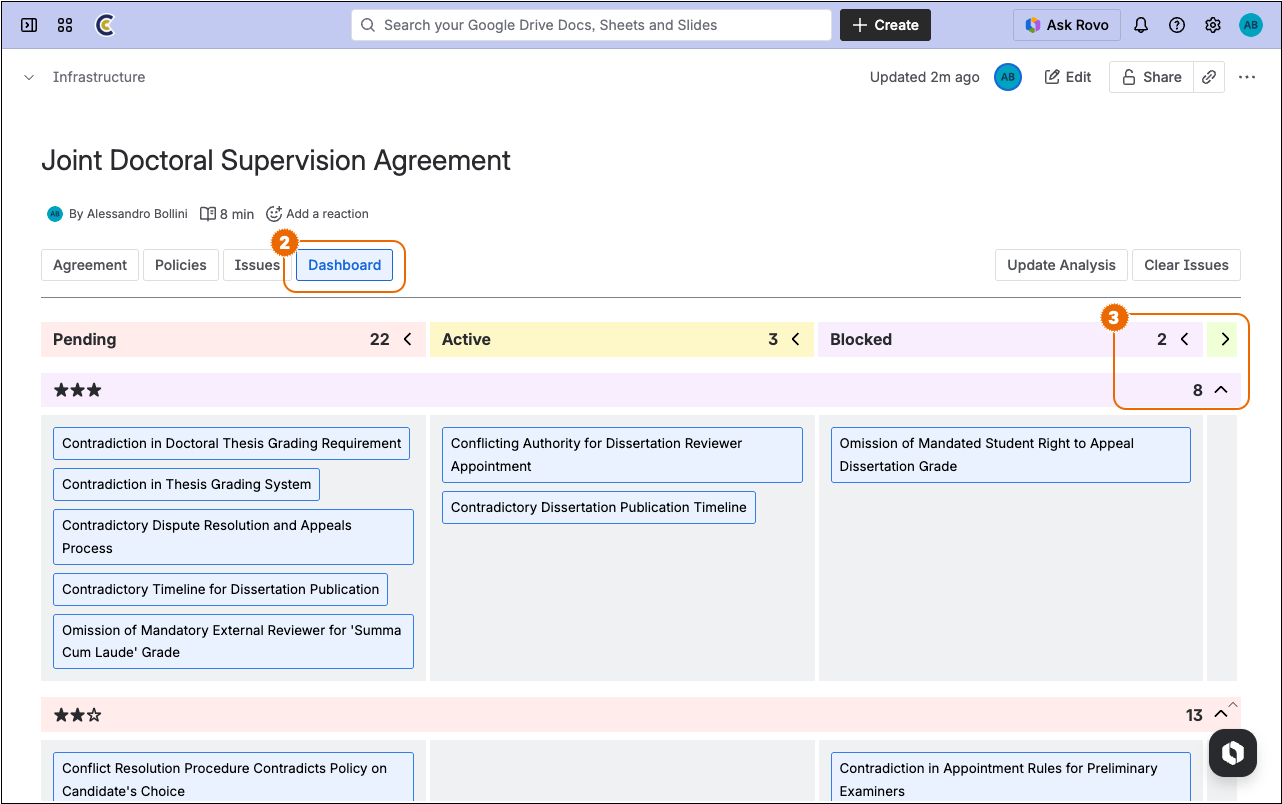
Click on the
Dashboardtab to show the issue matrixClick on column/row toggle buttons to collapse or expand related content
Inspect Issue Details
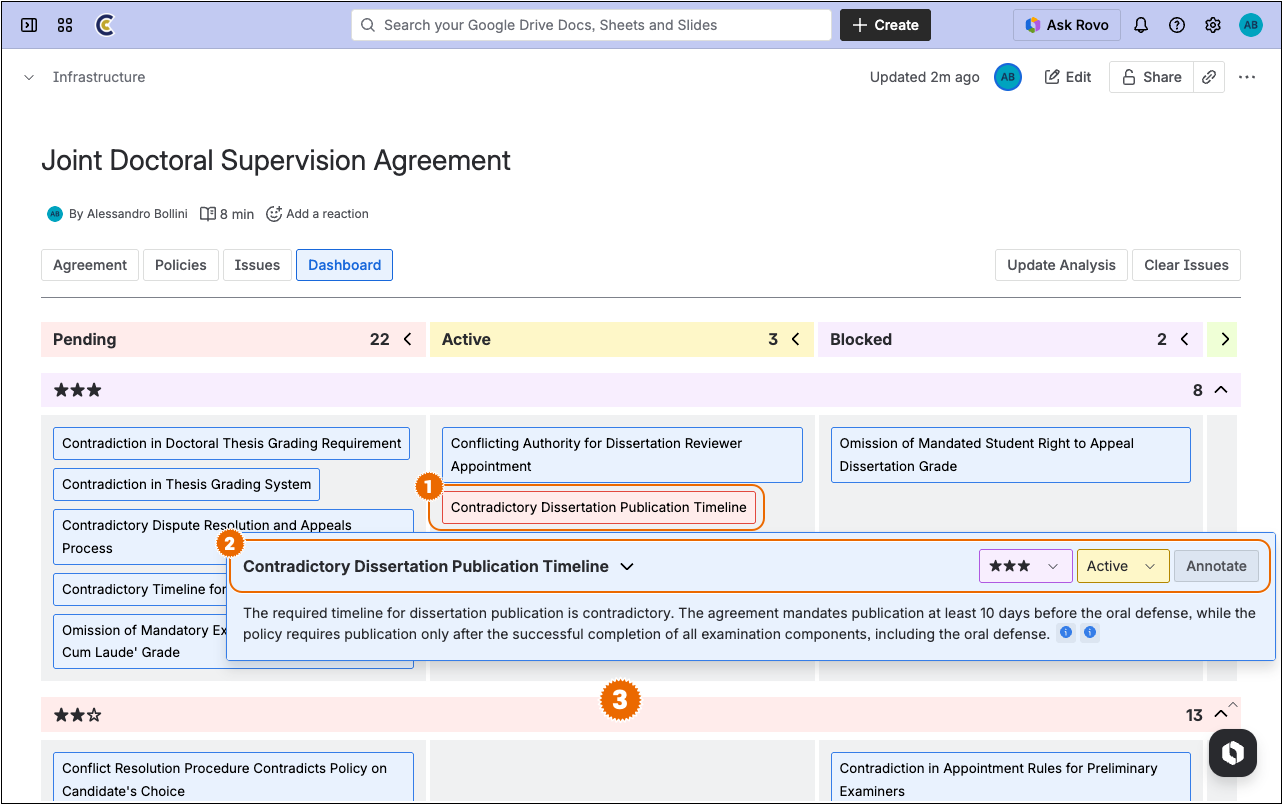
Click on an issue title to open its detail popup
Interact with the issue using the same tools described in the context of the issue catalogue
Click anywhere outside the popup to close it
[!TIP] Updates to the issue severity or state will dynamically reposition it within the matrix.